Default · Native
ONLYOFFICE
Nextcloud and ONLYOFFICE run in separate Bastille VNET jails.
Two FreeBSD jails
v1.0.1 · Stable release
An integrated Nextcloud installer for FreeBSD. Set up Nextcloud 35 by default, with its supporting services, through one guided installer.
Get the installer from the v1.0.1 release page.
Requires FreeBSD 15 or later (amd64)

FreeBSD foundations. Nextcloud services.
What is NextcloudOnFreeBSD?
Think of it as an AIO-style setup experience for FreeBSD: ZFS storage, isolated jails, HTTPS, and optional office and Talk services. The installer handles their configuration and connections.
Nextcloud runs natively in a FreeBSD jail. Choose native ONLYOFFICE, or Euro-Office or Collabora CODE in a dedicated Linux VM—or use Nextcloud on its own.
This is an independent project—not official Nextcloud AIO or a FreeBSD port of it. It focuses on installation and integration; ongoing updates and backups remain under your control.
Compare with official Nextcloud AIO or explore the architecture.
Choose at installation
Choose the office server that suits you, or use Nextcloud on its own. Switching office backends after installation isn't supported yet.
Default · Native
Nextcloud and ONLYOFFICE run in separate Bastille VNET jails.
Two FreeBSD jails
Virtual machine
A Nextcloud jail paired with Euro-Office in Docker on a dedicated Alpine Linux bhyve VM.
One FreeBSD jail + one VM
Virtual machine
A Nextcloud jail paired with Collabora Online CODE in Docker on a dedicated Alpine Linux bhyve VM.
One FreeBSD jail + one VM
No office runtime
Nextcloud without an integrated office server or office connector.
One FreeBSD jail
Client Push helps Nextcloud desktop clients notice file changes sooner. Optional Talk adds calls and chat, with its own dedicated jail. It needs additional ports for calls.
Connect existing SFTP or HTTP/HTTPS storage with External files. It is off by default and works with any office choice, with or without Talk. Set up connections in Nextcloud after installation.
Compared with official Nextcloud AIO
Both simplify setting up Nextcloud and its supporting services. Our installer focuses on FreeBSD installation and integration; AIO also manages ongoing updates and backups.
| Area | NextcloudOnFreeBSD | Official Nextcloud AIO |
|---|---|---|
| Foundation | FreeBSD 15+ (amd64), native jails, MariaDB and ZFS datasets | Docker Linux containers, PostgreSQL and Docker volumes |
| Setup | Terminal wizard or JSON recipe | Mastercontainer with a web management interface |
| Office | Native ONLYOFFICE; optional Euro-Office or Collabora CODE in a Linux VM | Optional Nextcloud Office/Collabora or EuroOffice containers |
| Multiple instances | Built-in instance separation, with private networks and storage | Documented separate VMs or rootless Docker users, with distinct ports |
| Updates | Operator-managed; no upgrade assistant for new deployments | Integrated updates, with optional automation |
| Backup and restore | Operator-managed; no integrated backup/restore for new deployments | Integrated BorgBackup, scheduling and restoration |
Documentation-based comparison, reviewed November 18, 2026—not a hands-on AIO test. Retained datasets are not backups. Read the full comparison and official sources.
Your services, together
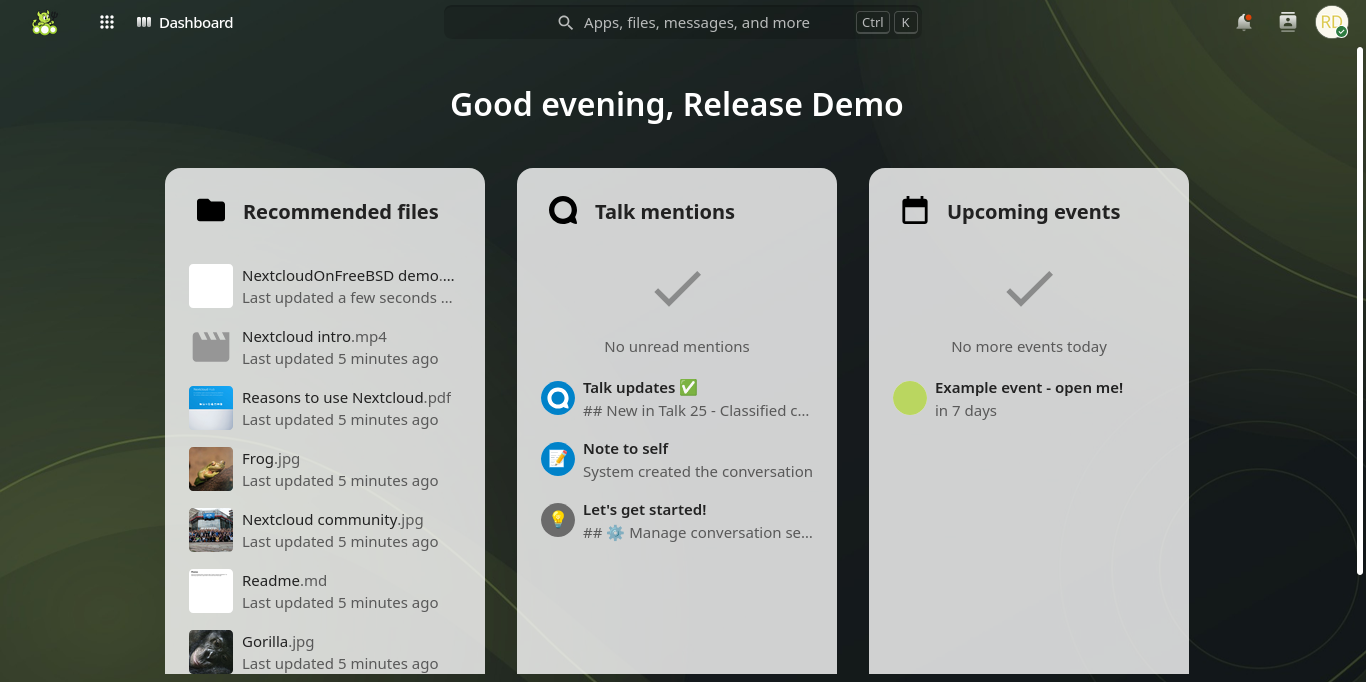
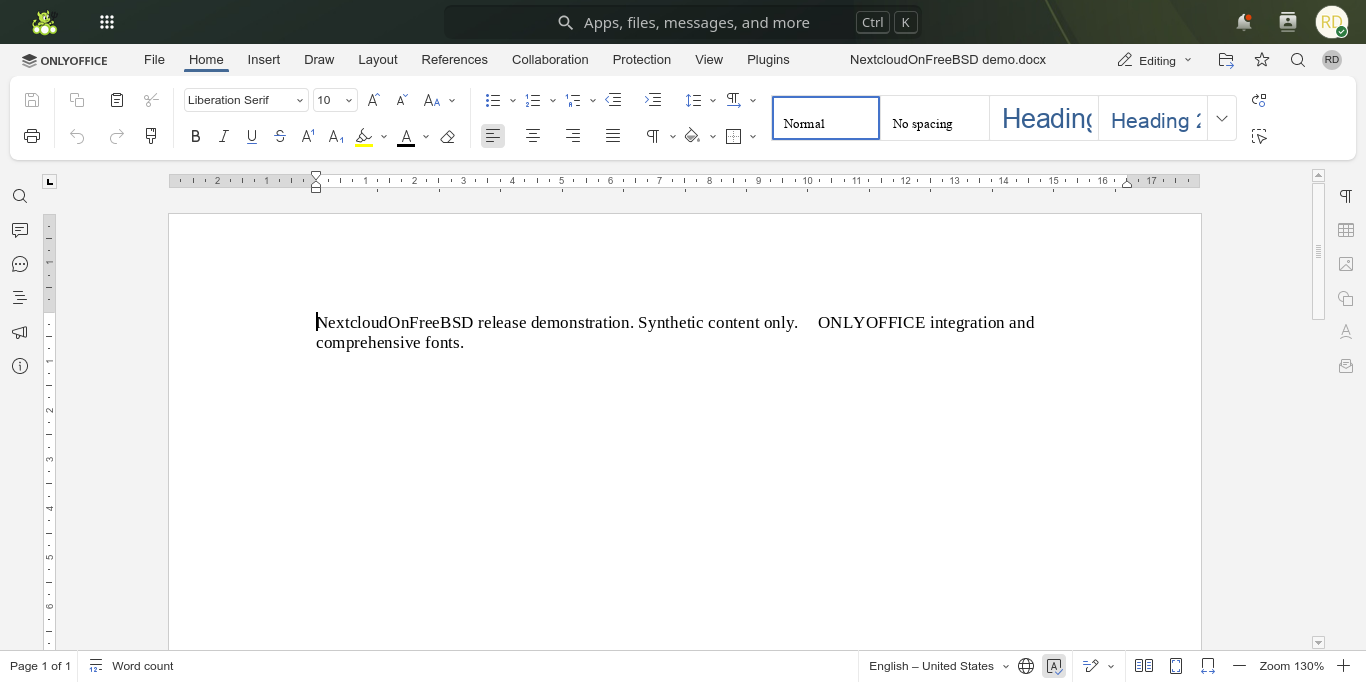
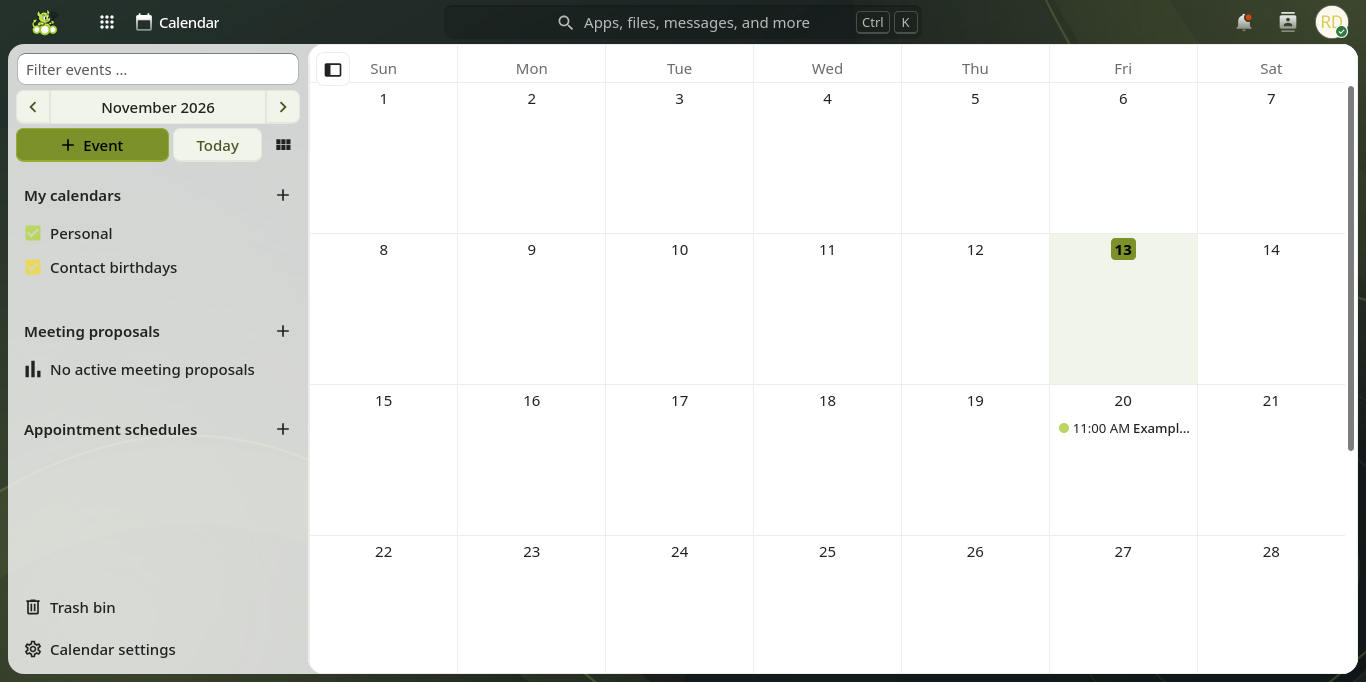
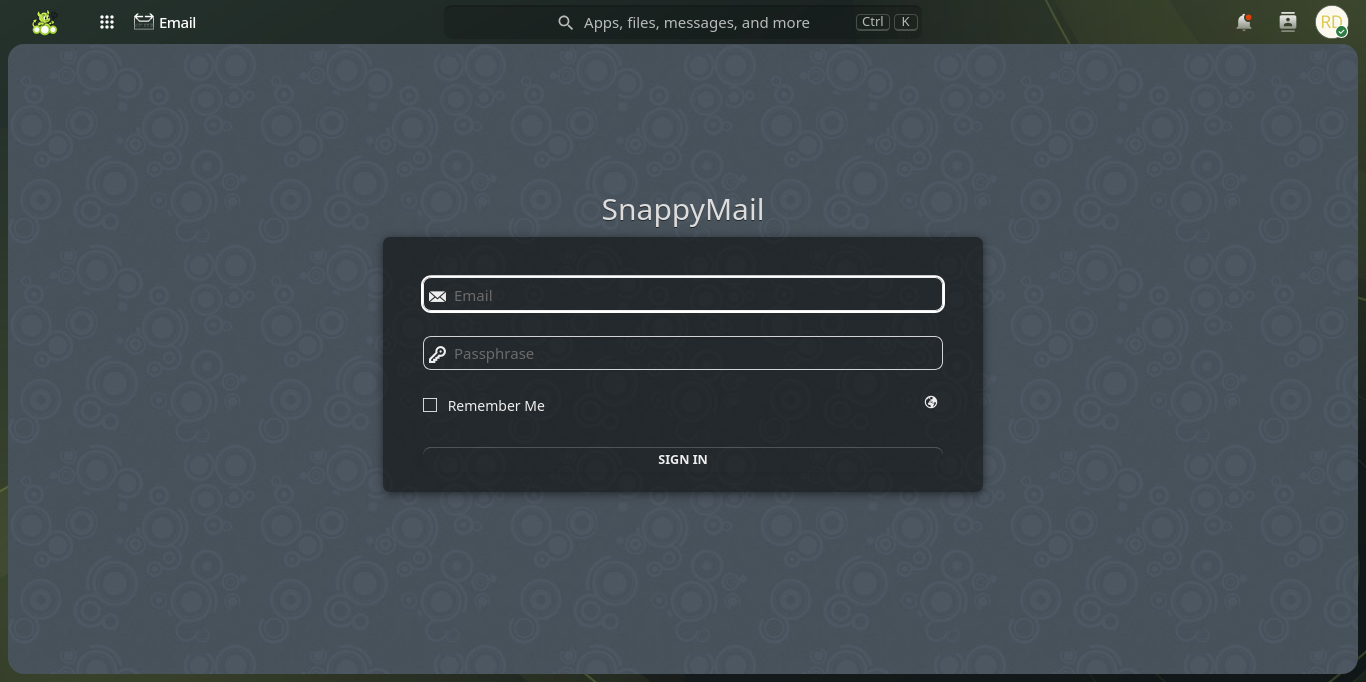
Actual views from our demonstration installation. Open a document from Files, work in ONLYOFFICE, and return to your cloud.
Before you start
Tested on FreeBSD 15.1-RELEASE, 15.2-STABLE and 16-CURRENT.
A clean or dedicated FreeBSD host is not required. Install alongside existing jails on a suitably configured host; see the host preparation guide for networking, PF and resource-conflict requirements. The installer creates new deployments; it does not adopt or upgrade existing Nextcloud installations.
Use the defaults—Nextcloud 35, PHP 8.5 and MariaDB 12.3—or choose other versions under Advanced software settings. Untested choices show a warning; installation may fail if the selected software is unavailable or incompatible.
Installation
The wizard walks you through setup. Stay at your terminal to review settings and confirm network access.
Download and unpack the installer from the v1.0.1 release page. Keep its directory for Resume, recovery and removal.
Run this from the installer directory as root. The wizard covers storage, networking, HTTPS and applications, and asks before installing missing pkg/Python prerequisites.
sh install.sh installForward the selected web and Talk ports to the FreeBSD host, not its private jails or VM, using the values in your installation plan. An external HTTPS proxy changes the web route; follow the port-forwarding guide for the details. The installer does not configure your router.
Check your settings and choose APPLY. When prompted, open a new SSH connection to check access, then enter KEEP before the timer expires.
Installation may update pkg and required dependencies. Keep your host updated and maintain your own backups afterward.
Copy the example for your office choice and edit its settings. The installer generates passwords; the recipe contains settings and certificate file paths.
sh install.sh plan /root/nextcloud-install.json
sh install.sh install --config /root/nextcloud-install.json
Run these commands from your installer directory. Planning needs Python 3.11+ and makes no changes to your host. Stay at the terminal during installation to answer prompts and confirm access.
Instance removal
Use the original installer directory. Save and close editors, then disconnect clients. Normal removal keeps all application datasets, snapshots and office VM disks.
sh install.sh remove INSTANCEReplace INSTANCE with your instance name and follow the confirmation prompts. Keep a second SSH connection available to check access.
Retained data is not a full backup or an automatic reinstall. Read the guide before removing an instance or permanently deleting its data.
Documentation & support
Ask for help on GitHub with the steps you followed and the error message. Remove credentials before sharing logs.
Thank you to the maintainers, contributors, testers and documentation writers who make this possible.
Built with FreeBSD, Bastille, Nextcloud, ONLYOFFICE, vm-bhyve, Alpine Linux, Docker, Collabora and Euro-Office.
If you’d like to support my open-source work: GitHub Sponsors or Ko-fi. Thank you!